7&8 ICT
|
Digital Systems
|


| ||
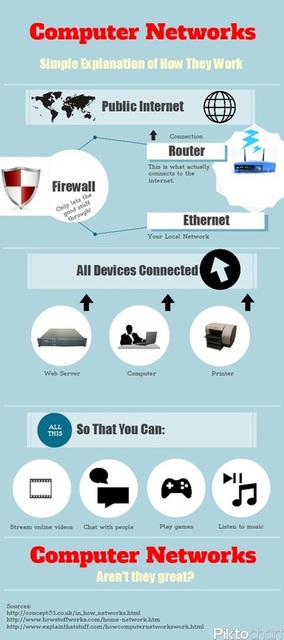
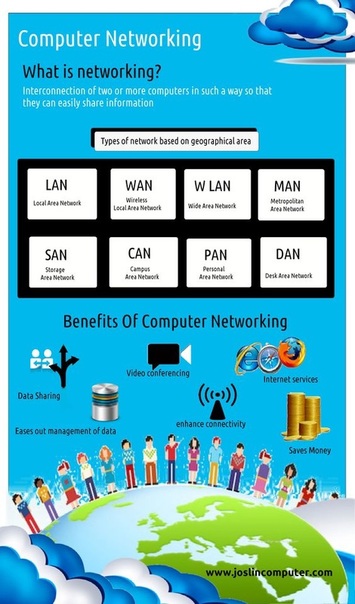
Networks and how they work.
Week 1.Introduction & expectations.
Network space, file tidy up and folder creation. 
THEN:
Week 2.Yes, I am away. So behave yourselves and finish your scavenger hunts and make sure they are saved as the 3 different versions I have asked for.
Then make sure your network folders are cleaned up - get rid of any rubbish files, sort your folders and make sure it is neat and tidy. In class today we will cover the following.
In class today we will cover the following.
Username and password in your network folder for Spark and Prezi.
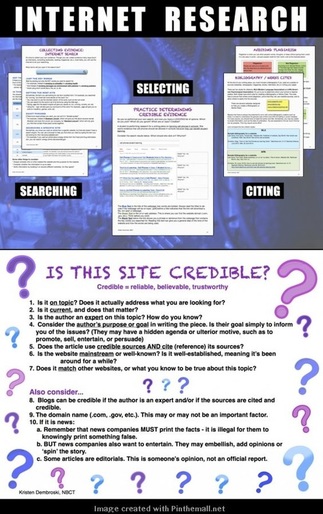
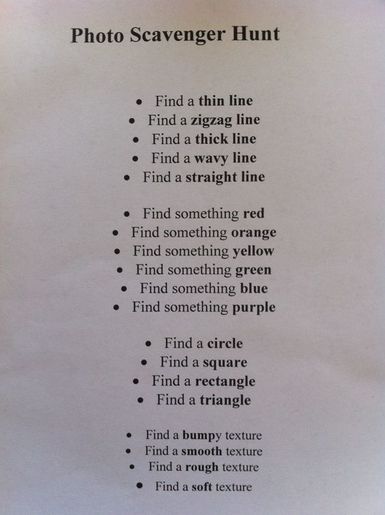
Do no just do a Google search for 'thin line', think of an image that would demonstrate a thin line such as a piece of thread, a line drawing etc. Something red would be a search for an actual item that you know is red, not just 'something red'.
Chrissy's presentation.
Chrissy's Spark video. Jordyn's presentation. Max's Prezi. Riley's presentation. Week 3.By the end of the double session today you must have completed the following:
Introduction to Pinterest. Individual folders.
Safety and security. Digital Footprint.


Class Pinterest page. Accessible on classroom computers with my log in.
|

| ||||

Week 4.
I want to trial a collaborative work space on the smart board. Please listen, look and do and let's see if this works.
| guideslsonlinev17aug17.pdf |
Teacher login: suite.smarttech.com
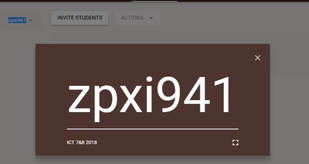
Student login: hellosmart.com If this does not work........put it in the address bar as displayed on the board.
Student login: hellosmart.com If this does not work........put it in the address bar as displayed on the board.
To put your Spark work into your pinterest folder, you copy the link and then paste the link when you upload.
Complete the Spark task started last week - to be completed and submitted this week. Spark should work now. I have reviewed some of the work - please go through and make sure that you have used Capital letters, punctuation and correct spelling.
Complete the Spark task started last week - to be completed and submitted this week. Spark should work now. I have reviewed some of the work - please go through and make sure that you have used Capital letters, punctuation and correct spelling.
Wednesday.
Thanks for your patience on Monday trying to do collaborative work on the Smart board.......I will look into how to do other things this way as it could be interesting.
Email......I have been told you are not allowed to have school emails which limits the work we can do in this class.
Anything you need my log in for (eg: Pinterest) you will need to wait but make sure you save your work so you can do it quickly!
Email......I have been told you are not allowed to have school emails which limits the work we can do in this class.
Anything you need my log in for (eg: Pinterest) you will need to wait but make sure you save your work so you can do it quickly!
Things you can do in the double session today in no particular order....without starting anything new.........or needing to use class laptops.
- Finish your Internet Scavenger Hunt and have it ready to save on class page.
- Proof read and find mistakes on any other presentations.
- Go to https://prezi.com/ and use the same email log in (mine) and the same password for Spark. Create the picture scavenger hunt in Prezi.
- Take textiles photos and sort them into a folder ready for printing for putting into your textiles books (print Thursday).
- Write a letter to Ms Lobry asking for access to certain group sites and email so that you can get the most out of your ICT classes! Ask about using google classroom like 99% of other schools do! Also tell her how wonderful I am and that I have so many exciting things I can do if we have the required technology.
- Don't waste time......
- Have a go at coding....Snap....see below........
- Textile videos are in your network folder - use your headphones!
- Do any other homework - use type Talker!
|
Work on your own - A secondary students' version of Scratch. Programming tool.
|
Week 5.
Scavenger hunts - some of your picture choices are a bit vague but I do like the variety in them so they are getting there. Also check your captions, you should have written something amazing, not just repeated the question and given a vague description! Please review! Be a little more creative (Jacob!).
Eg: "This road is a wavy line and will take you on a journey."
Eg: "This road is a wavy line and will take you on a journey."
It is part of your assessment to have your work in the format required and where it can be assessed on line.
|

|
 |
 |
 |
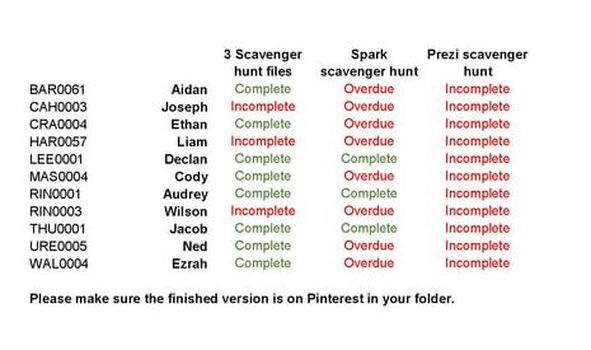
Pin your presentations onto Pinterest board for assessment.
Put some more of your textiles photos onto Pinterest so they are clearly represented - well done to those who already have done this. And remember to print some for your workbook.
Prezi and Adobe Spark presentations can be pinned directly to your Pinterest board when you copy the link.
Put some more of your textiles photos onto Pinterest so they are clearly represented - well done to those who already have done this. And remember to print some for your workbook.
Prezi and Adobe Spark presentations can be pinned directly to your Pinterest board when you copy the link.
Week 6
I am absent Monday and Tuesday of this week. That does not mean you do nothing.
You are to complete your Prezi scavenger hunt. Make sure you do the following in your presentation:
If you finish your Prezi, go back to Spark and make a Spark video about your work in textiles so far. Include pictures and sentences.
*Get anything ready to upload or print in the next class when I can log you on again.
You are to complete your Prezi scavenger hunt. Make sure you do the following in your presentation:
- Make sure your words stay inside any shapes and are all the same font and size.
- Ensure the arrangement of your work is pleasant to the eye and neatly placed. Give thought to hierarchy - what is more important and then less and less.
- Make sure the presentation runs smoothly.
If you finish your Prezi, go back to Spark and make a Spark video about your work in textiles so far. Include pictures and sentences.
*Get anything ready to upload or print in the next class when I can log you on again.
OMG you guys.....I am here today (Tuesday) with https://timkitchen.net/ who is a real guru and has heaps to offer in terms of using Adobe in Schools if ever we get up to date in being able to use technology. Mind you, one of you muppets has given me a cold so I am feeling pretty ordinary and absorbing most of the information.
We have looked into Spark and I have seen a lot of interesting work - I showed them your work and they were impressed! Declan, you are going well with your video but let's put in some actual 'video' and sound!!!
I am using Adobe Character Animator......trouble is, our laptops still do not have the full version that is available and it expires in 7 days after activation! I am told that all laptops should have the newest image which everything works although with the limits of any 'cloud' based applications we are still limited in what we can do. As you know I am passionate and keen to let you guys experience and decide what works best for you! I have contacted Kelum to ask what he knows about getting us into the current century!
I have also used Adobe Premier Pro - and am blown away with video editing complete with sound.
Royalty free music Bensound.com
We have looked into Spark and I have seen a lot of interesting work - I showed them your work and they were impressed! Declan, you are going well with your video but let's put in some actual 'video' and sound!!!
I am using Adobe Character Animator......trouble is, our laptops still do not have the full version that is available and it expires in 7 days after activation! I am told that all laptops should have the newest image which everything works although with the limits of any 'cloud' based applications we are still limited in what we can do. As you know I am passionate and keen to let you guys experience and decide what works best for you! I have contacted Kelum to ask what he knows about getting us into the current century!
I have also used Adobe Premier Pro - and am blown away with video editing complete with sound.
Royalty free music Bensound.com
Week 7.

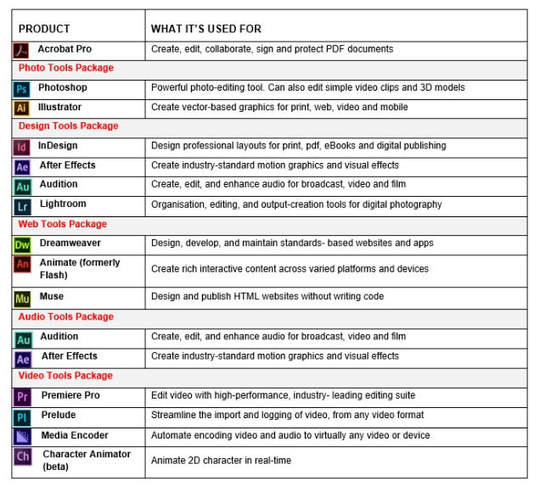
Go back to week 4 and open hellosmart.com
Scroll down to the Adobe list below. Use Snipping tool and select the Adobe list. Edit and circle all the Adobe programs you have on your laptop. Save and submit the image to the smart board. Get documents read to you: Word Adobe Acrobat. Revision: Set up Web cams and taking photos and videos. |
Taking a look in Pinterest folder there are some significant gaps in your work folders. There is also a lack of selected photos of your work in the Textiles photos section.
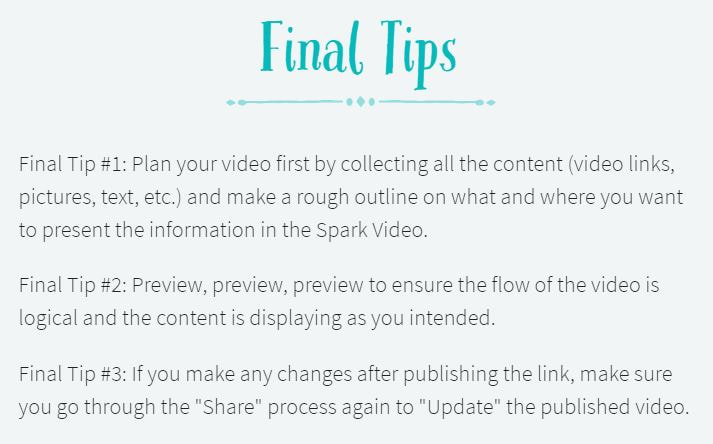
Please delete any older versions of any presentations. When you update to current work, delete any previous versions (Aidan). All laptops are logged in and ready to go. If you have finished and presented everything up to this date, the next task is to create a Spark video. You will continue to edit this right throughout the semester with updates of your work. Start making a Spark video about your work in textiles so far. *This will be a work in progress! How to create a Spark Video: https://spark.adobe.com/page/JJcZ3JQWIJPlc/ Read the above tutorial completely! Your final video (due during term 4) needs to include:
|
Week 8.
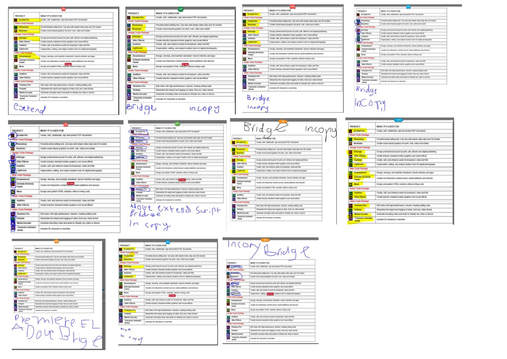
- I have summarized your Adobe lists you did last week and will pass on to Kelum. Thank you for that. I am determined to get it all working! I have also contacted the department that controls digital technologies to get the latest infromation on which image should be loaded on your computers. As it is, Cody and Liam both have a pretty good image BUT I am pretty sure their Adobe Acrobat DC does not work! The rest of you have a very old image!
- I would love you all to experience Character Animator and Premier Pro at the very least.
- Make sure you have actually looked at the Spark Video tutorial. These presentations need to be perfect in their presentation. Add any further information to your videos.
- Upload any work to your Pinterest folders.
Week 9.
Please organise your network folders - most need a bit of sorting.
I will be looking at how well your network folders are organised as part of your ICT assessment.
- Collect and take photos of your textiles dyeing and any other work you did last week including your sewing machine tasks.
- Fold up fabric and then store in your plastic pockets.
- File photos in your network folders.
- Add a detailed descriptions and photos to your spark videos.
What you should have completed so far or have in progress:
IF ANY OF THE 3 SCAVENGER HUNTS ARE NOT COMPLETE THEN YOU ARE FALLING BEHIND.
- First scavenger hunt (could be 2 or 3 pages) in .jpg format. Also .pdf and .pub/.doc versions - COMPLETED
- Spark - Photo scavenger hunt - COMPLETED.
- Prezi scavenger hunt - COMPLETED
- Photos of textiles work as it progresses into Pinterest folder - you may even use the ones I took from the web page!
- Spark video - work in progress ongoing over 2 terms.
IF ANY OF THE 3 SCAVENGER HUNTS ARE NOT COMPLETE THEN YOU ARE FALLING BEHIND.
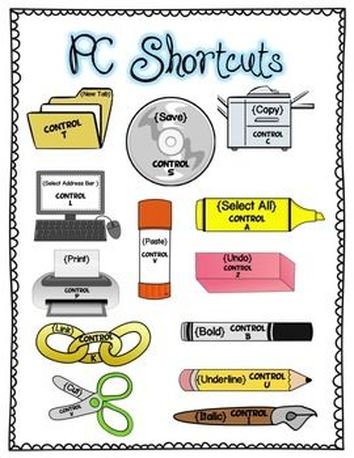
Wednesday - Shortcuts.
Week 10.
Read ALL these instructions first and then update your Chrome. This should eliminate the error you get using Spark. It is also has some very nice different features.
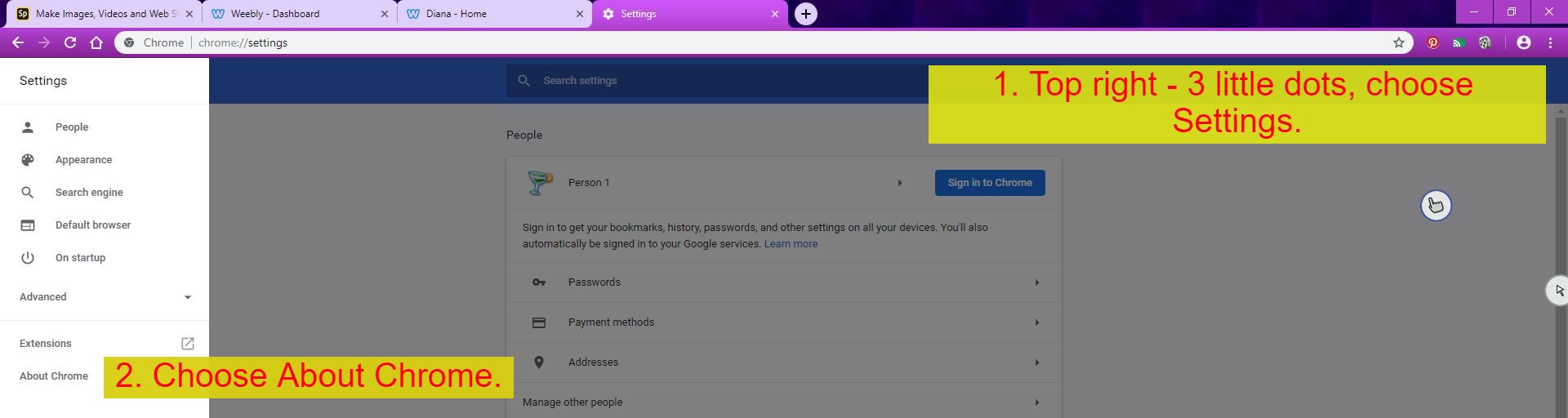
Update should start immediately. Allow it to complete fully! Then restart Chrome.
Due to absences today (Monday), this session would be a good session to do any catch up work on your Spark video, take any relevant photos and make sure you are up to date!
End of Term 3.
Headphones - watch the Adobe character video I put into your folder. I am hoping that one day you will get Character animator installed!
Week 11. |
Week 12. |
Week 13. |
Week 14. |
Introduction to Excel.
In your Network folder you have a folder named Section 8. It contains Excel work for you to do. We will be starting this as a group and reading through it. Then you need to complete the exercises. Save in the Section 8 folder with appropriate names for each one.
In class today, after I have introduced Excel, you are to complete the set work.
|
Monday 22/10
In your network folder you have an excel file called Chapter 04. If you cannot find it, you can download it here>>>>>>>>>>>>>>>>>>>>> |

| ||
Do NOT forget to keep your Spark videos up to date with your textiles progress. Add some humour.....you have all seen a video on how to knit......take some hints! Make sure you update it to your Pinterest folder.
A video on features of Excel:
http://www.gcflearnfree.org/excel2010/1.2
Handy tutorials - make yourself familiar with these:
http://www.teach-ict.net/software/excel_2010/excel_2010.htm
http://www.gcflearnfree.org/excel2010/1.2
Handy tutorials - make yourself familiar with these:
http://www.teach-ict.net/software/excel_2010/excel_2010.htm
Week 15.
Monday 5th November. Pupil Free Day.
Tuesday 6th November. Melbourne Cup Holiday.
Tuesday 6th November. Melbourne Cup Holiday.
Weeks 16&17.
Please take note:
You MUST complete the exercises as they are required - that means use the formulas that are introduced in each exercise. Checking some of the work (and it takes a long time to open and check each file - and in some cases finding them too) there are lots of errors in formatting and formulas in your work. Also NOT completing all that is required!
Check your work - check the requirements - do not wait for me to tell you that it is incomplete! Make sure you complete the spreadsheets project AND the project in your blue folder.
Wednesday November 14th to Thursday November 22nd - I will be away on leave. This does not mean that you do not work in my classes.....you are expected to show some respect and responsibility and continue with your work in both Textiles and ICT. I should not come back to madness and mayhem!
Obviously you will not be able to print BUT you can get files ready to print for when I get back on Monday 26th and log into computers for you. Your Excel work will be due on this date!
Also remember that assessment for both ICT and Textiles includes your documentation of your work for textiles right through the entire semester via a SPARK presentation so ensure that you put photos, videos, writing into this and get it done thoroughly.
You MUST complete the exercises as they are required - that means use the formulas that are introduced in each exercise. Checking some of the work (and it takes a long time to open and check each file - and in some cases finding them too) there are lots of errors in formatting and formulas in your work. Also NOT completing all that is required!
Check your work - check the requirements - do not wait for me to tell you that it is incomplete! Make sure you complete the spreadsheets project AND the project in your blue folder.
Wednesday November 14th to Thursday November 22nd - I will be away on leave. This does not mean that you do not work in my classes.....you are expected to show some respect and responsibility and continue with your work in both Textiles and ICT. I should not come back to madness and mayhem!
Obviously you will not be able to print BUT you can get files ready to print for when I get back on Monday 26th and log into computers for you. Your Excel work will be due on this date!
Also remember that assessment for both ICT and Textiles includes your documentation of your work for textiles right through the entire semester via a SPARK presentation so ensure that you put photos, videos, writing into this and get it done thoroughly.
Introduction to coding/programming.
|
What is Coding?
|
|
|
|
|
Make an Avatar Save the image via print screen unless you want to make an account.
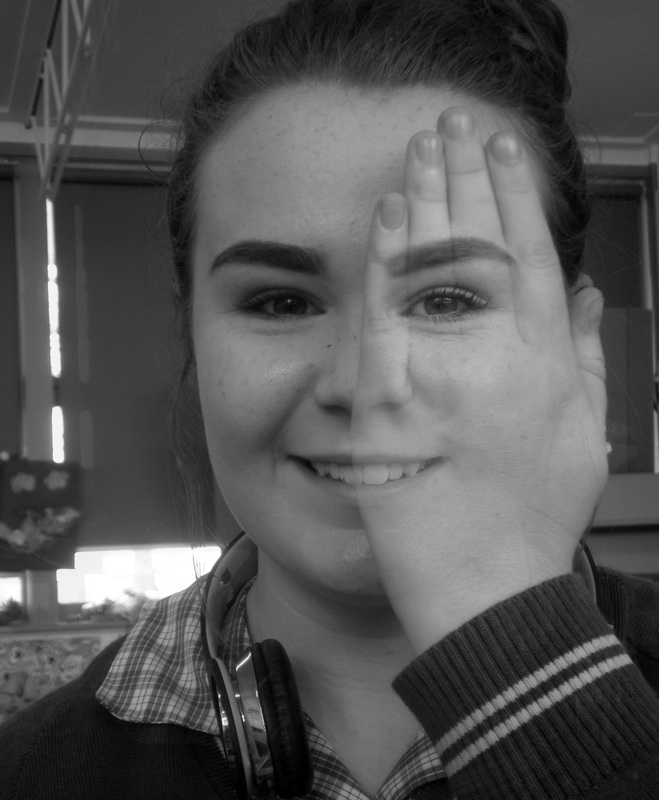
Double exposure.
Use the class camera.....it takes better quality photos. All take your photos (in pairs) and then I will upload them to your network folders.
You MUST make sure that the pose you use is the same in both photographs so that they can be overlayed with minimal issues with lining up. Photoshop is good and there are tools to do this but it is better to get the camera work right.
It is better to take multiple shots so that you do not have to go back and try again!!!
Creating a dynamic black and white image - sometimes with minimal colour - can be effective also - play with levels, brightness and contrast for best effects. (Look at the eyes on the dark male image in the central lower part below.)
Use the class camera.....it takes better quality photos. All take your photos (in pairs) and then I will upload them to your network folders.
You MUST make sure that the pose you use is the same in both photographs so that they can be overlayed with minimal issues with lining up. Photoshop is good and there are tools to do this but it is better to get the camera work right.
It is better to take multiple shots so that you do not have to go back and try again!!!
Creating a dynamic black and white image - sometimes with minimal colour - can be effective also - play with levels, brightness and contrast for best effects. (Look at the eyes on the dark male image in the central lower part below.)
|

|
"Mona Me"
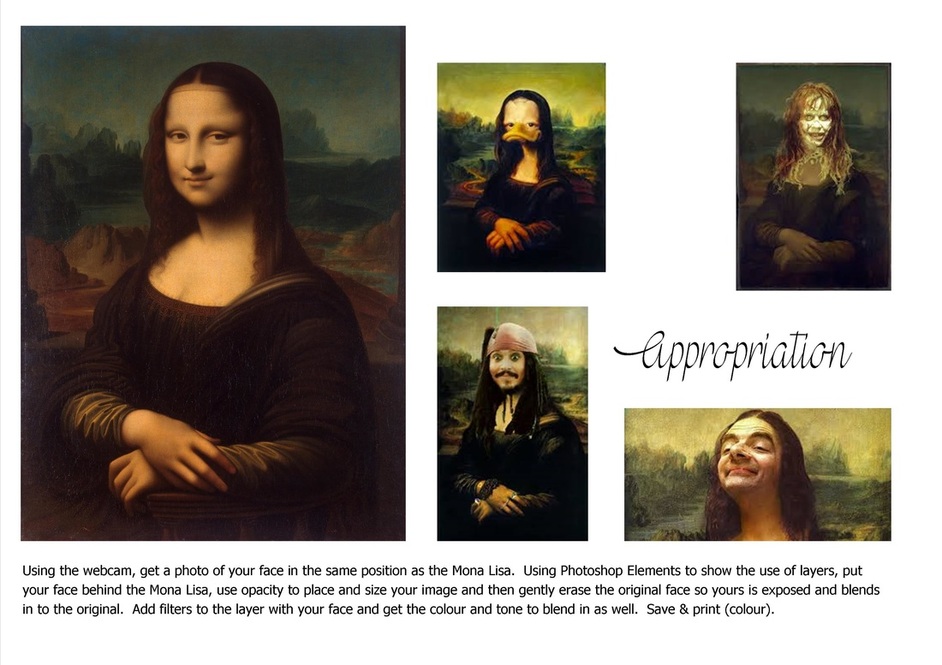
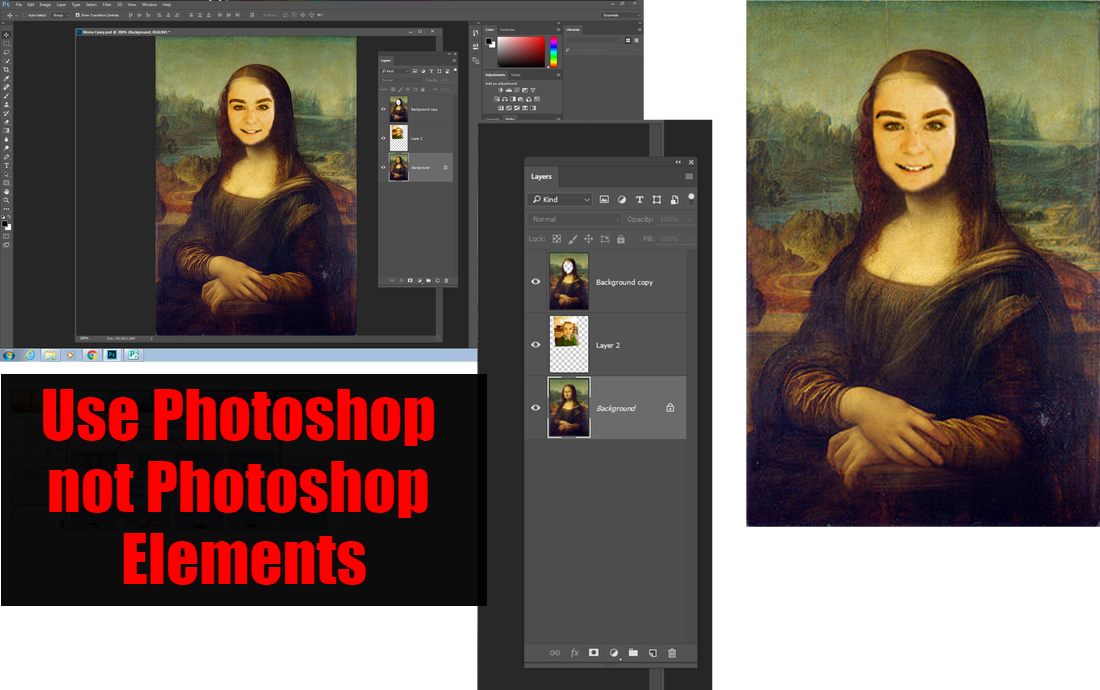
Using the text tool, title your artwork "Mona XXXX" where XXXX represents your name. It must be in a font and colour that does not detract from the artwork. BOTTOM RIGHT HAND CORNER.
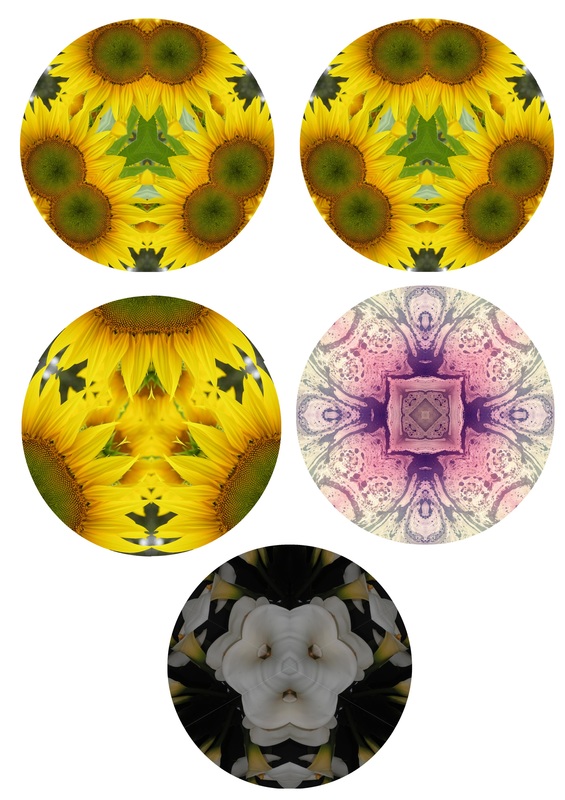
Mandalas.
Digital photography and mandalas.
- Trial Mandala - all templates with sunflower.
- Mandala created with own photograph. Do all templates.

|

| ||||

|
|
|
|
| ||||||||||
Final presentation is 10 Mandalas!
Mandalas - take some photos of your own and create a mandala or 2 - template of choice. Try not to save over the template - give things a new name. Make sure you are actually making a proper mandala.

|

|
Work that is not completed or has room for improvement
will not go away so make sure you get it done. |
|
Rapid Typing. In the ICT tab of the Edustar toolbar. |
|
|
Rapid Typing.
(In the ICT tab of the Edustar toolbar.) The following should be done in class in this order:
|
Double session today - overdue work is still to be submitted as I have notes that will be sent home for signing very soon. Check list is above in week 4. LOOK AT IT!!!! I am not accepting sub standard work. You will keep adding to your Smore presentation as you do more textiles work but it should be ongoing.
|

Please delete any Pinterest work that has been updated. It is VERY frustrating looking at 3 versions of the same thing!!!!
If you do NOT have Pinterest - do it via this computer. I will log you in.
If you do NOT have Pinterest - do it via this computer. I will log you in.
Overdue work is not going to go away and must get done - I am sick of saying this!
Wednesday 19th October.
|
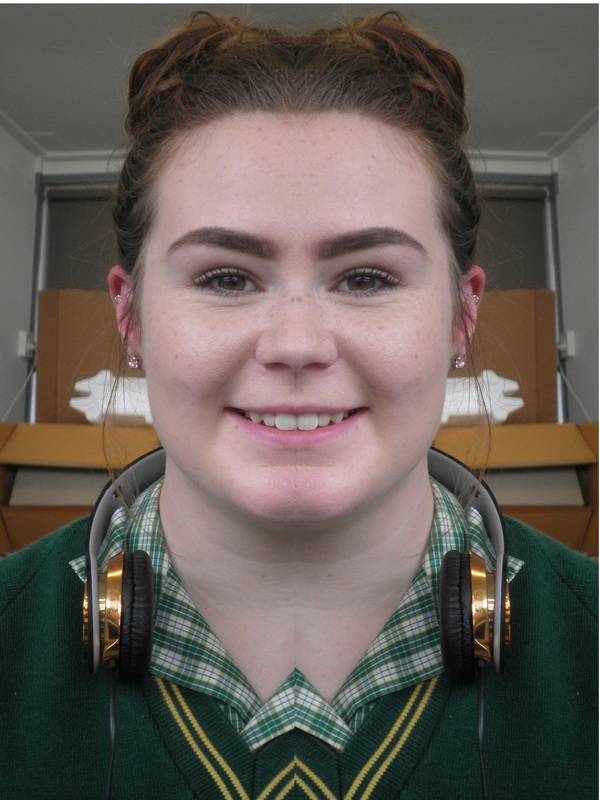
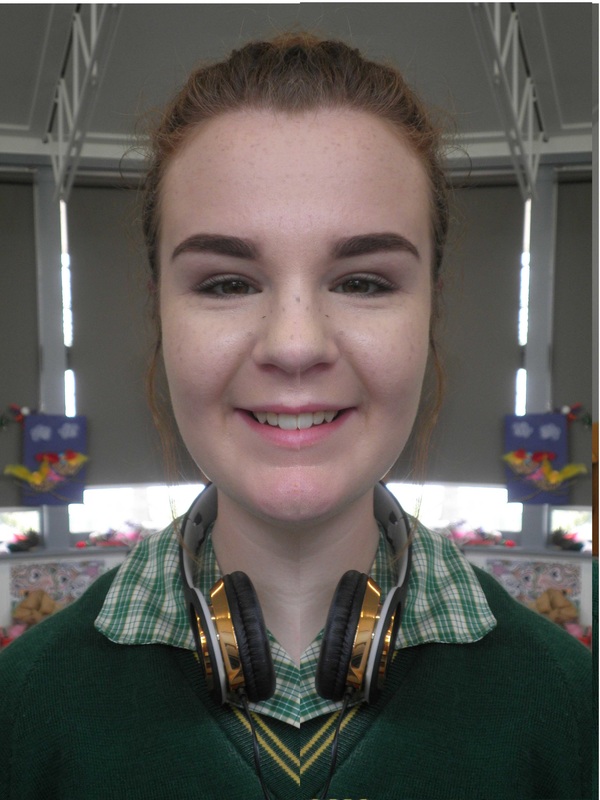
Flipping.
Using a full face photo of yourself taken with the webcam, cut the face in half, copy, paste and flip horizontally and put together an image of yourself with 2 left sides and then 2 right sides. |
  |
Wednesday 26th October.
Wednesday 2nd November.
- Notes on the whiteboard to read.
- Update your SMORE - pictures of your sewing and dyeing projects with comments. Make sure you have covered everything.
- How many of you did NOT put your name on your Mona, in a suitable colour that blends in with the image?
In your Network folder you have a folder named Section 8. It contains Excel work for you to do. We will be starting this as a group next week.
Week 16.
Week 17.
Tuesday 15th November. Stay in the 7/8 room please.
Do not waste your time!
Week 18.
Tuesday 22nd November.
I don't think I need to remind you that reports are being written and they do not just happen - they take time. I will be looking at your network folders and online submissions of work while writing your reports so make sure it is all there.
Mandalas - not many of you have used your own photos yet!
Continue with your Excel work and make sure it is in a folder where I can look at it easily. Work on your own!
Mandalas - not many of you have used your own photos yet!
Continue with your Excel work and make sure it is in a folder where I can look at it easily. Work on your own!
Wednesday 23rd November.
Week 19.
Extra resources.
Unfortunately our network will not run this.

Excel
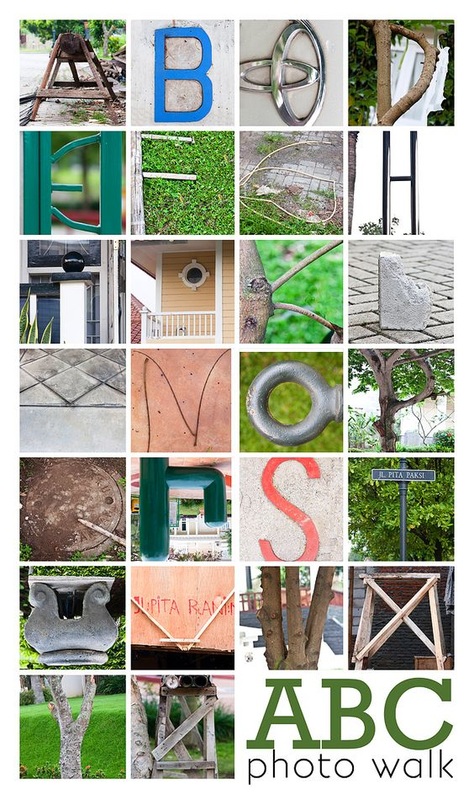
Task 5.Digital imagery.
|
|
